How MileEngine works
Product tour
One job, told in ten pictures: from the workshop to the office and back. Every picture comes from the app, with neutral sample data.
A job in the workshop
M. Keller is working on a coupé with an off-road conversion. This is his morning on the tablet.
Step 1: Workshop · tablet
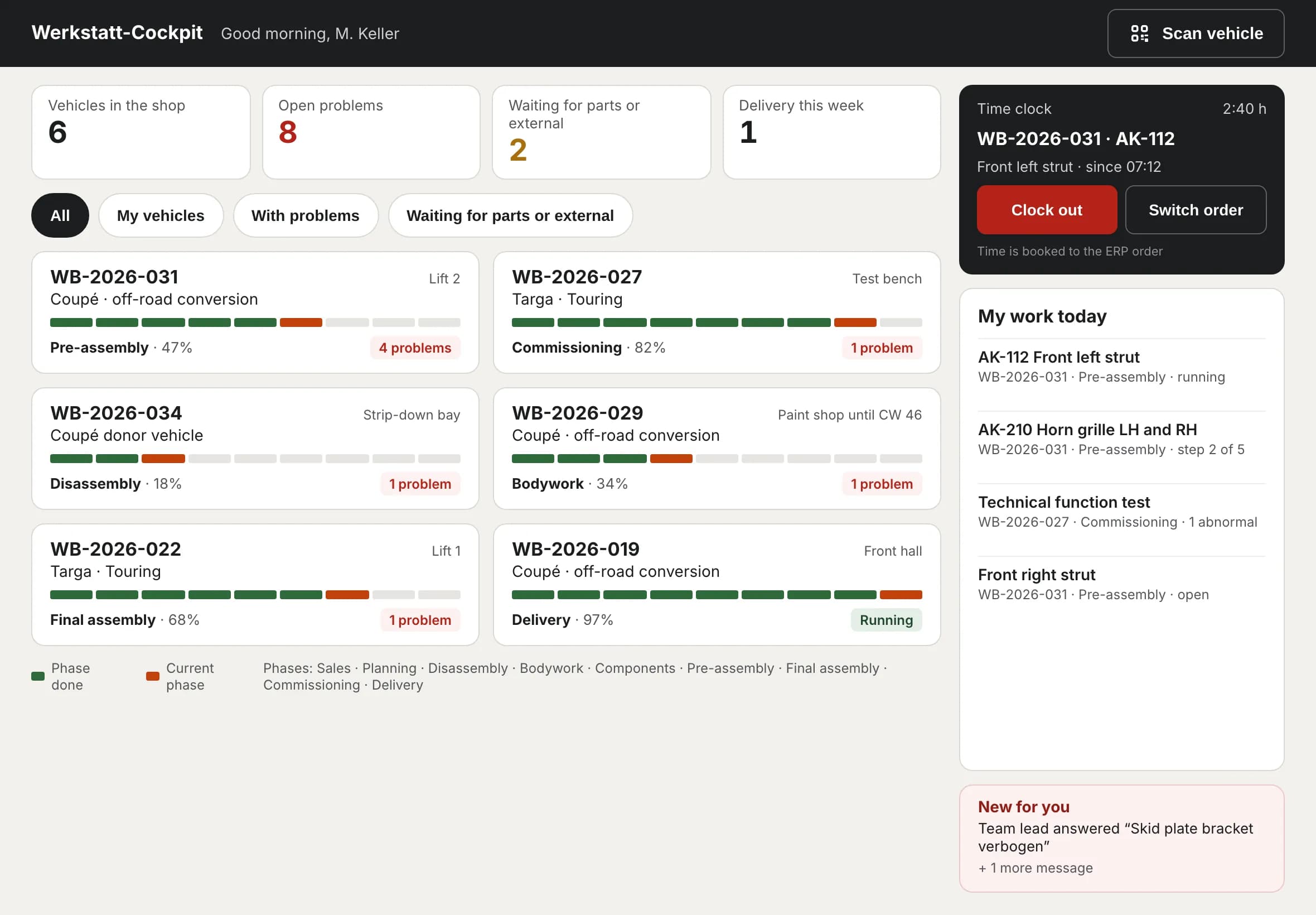
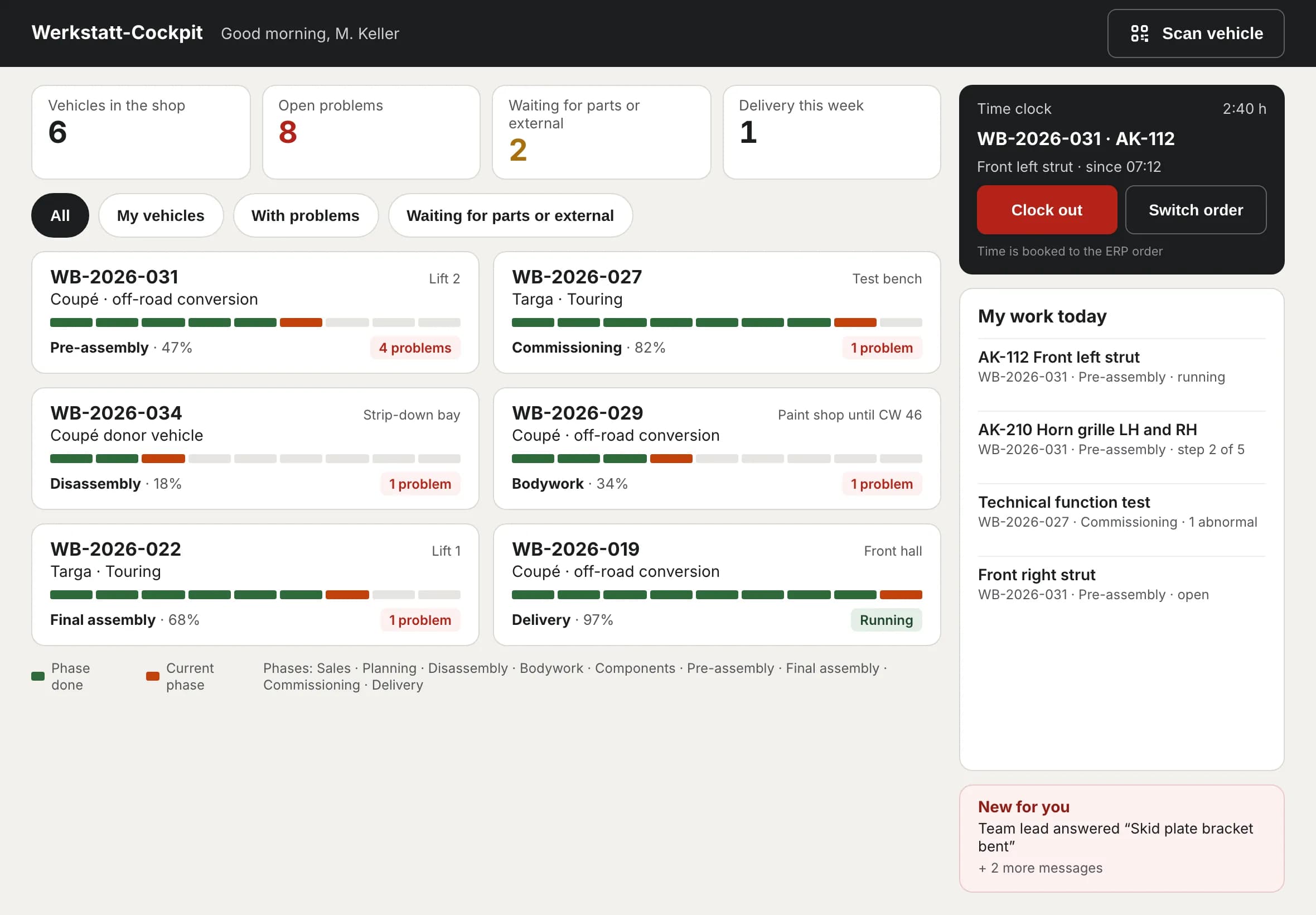
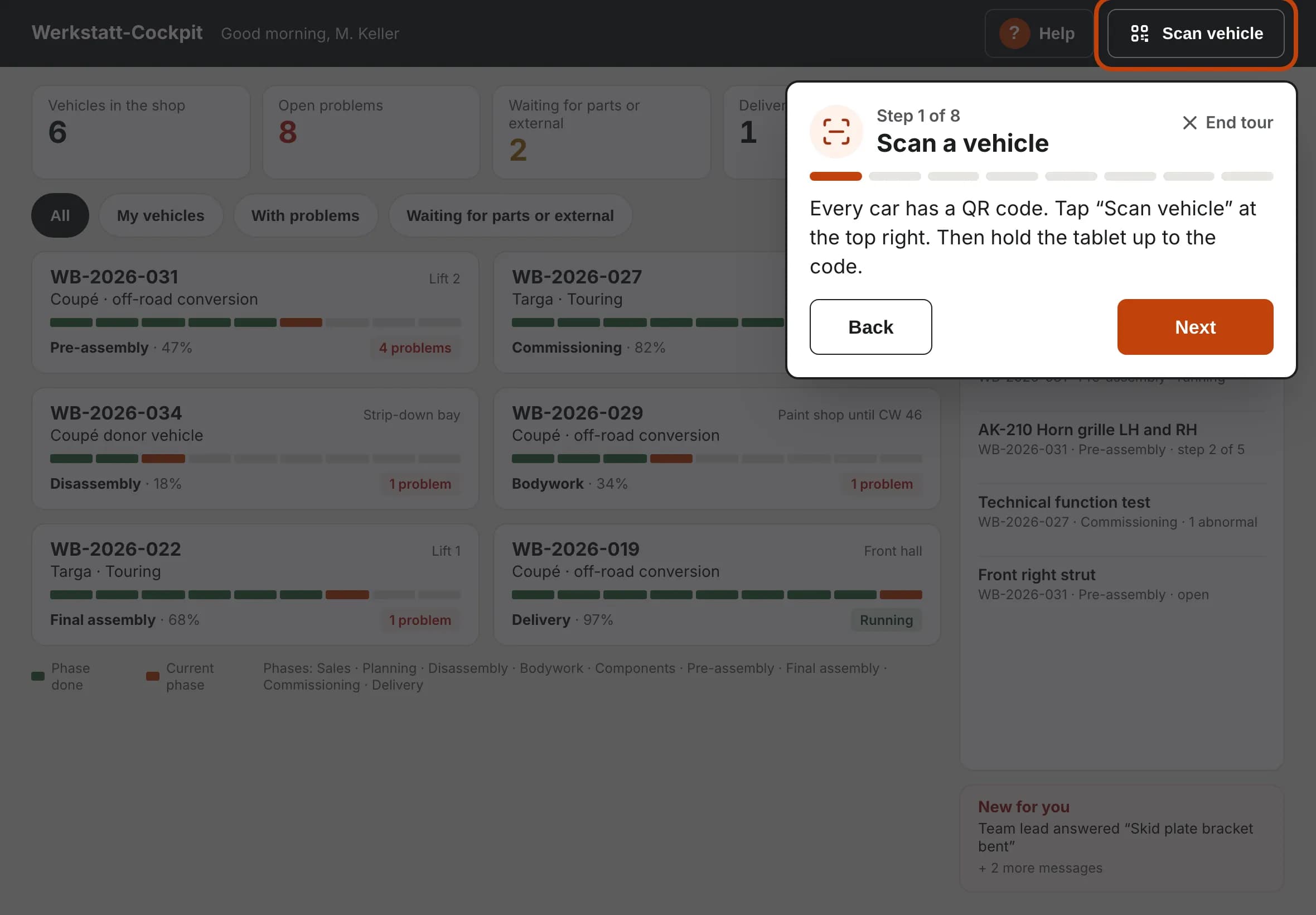
Log in and scan the vehicle
In the morning M. Keller logs in with his PIN. The home screen shows every vehicle in the shop, his time clock and today’s work. Scanning the QR code on the vehicle opens everything for this job.
- Log in with a 4-digit PIN
- Time clock runs on job and work card
- “My work today” comes from scheduling
Step 2: Workshop · tablet
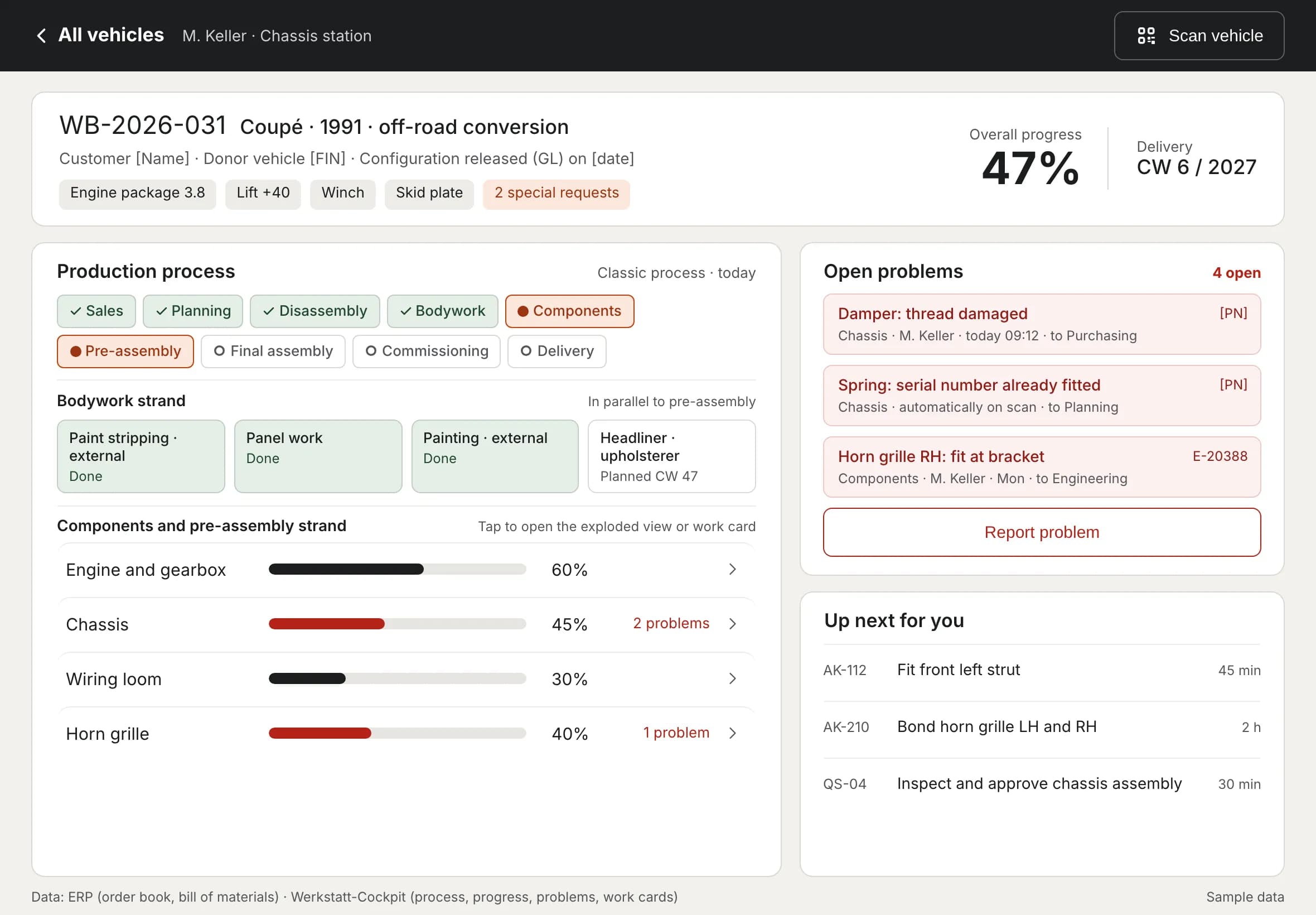
The vehicle card shows where the car stands
Process, assemblies, open problems and the next job at a glance. Green is done, orange is in progress.
- Phases and parallel strands
- Open problems with who is responsible
- “Up next for you” opens the work card
Step 3: Workshop · tablet
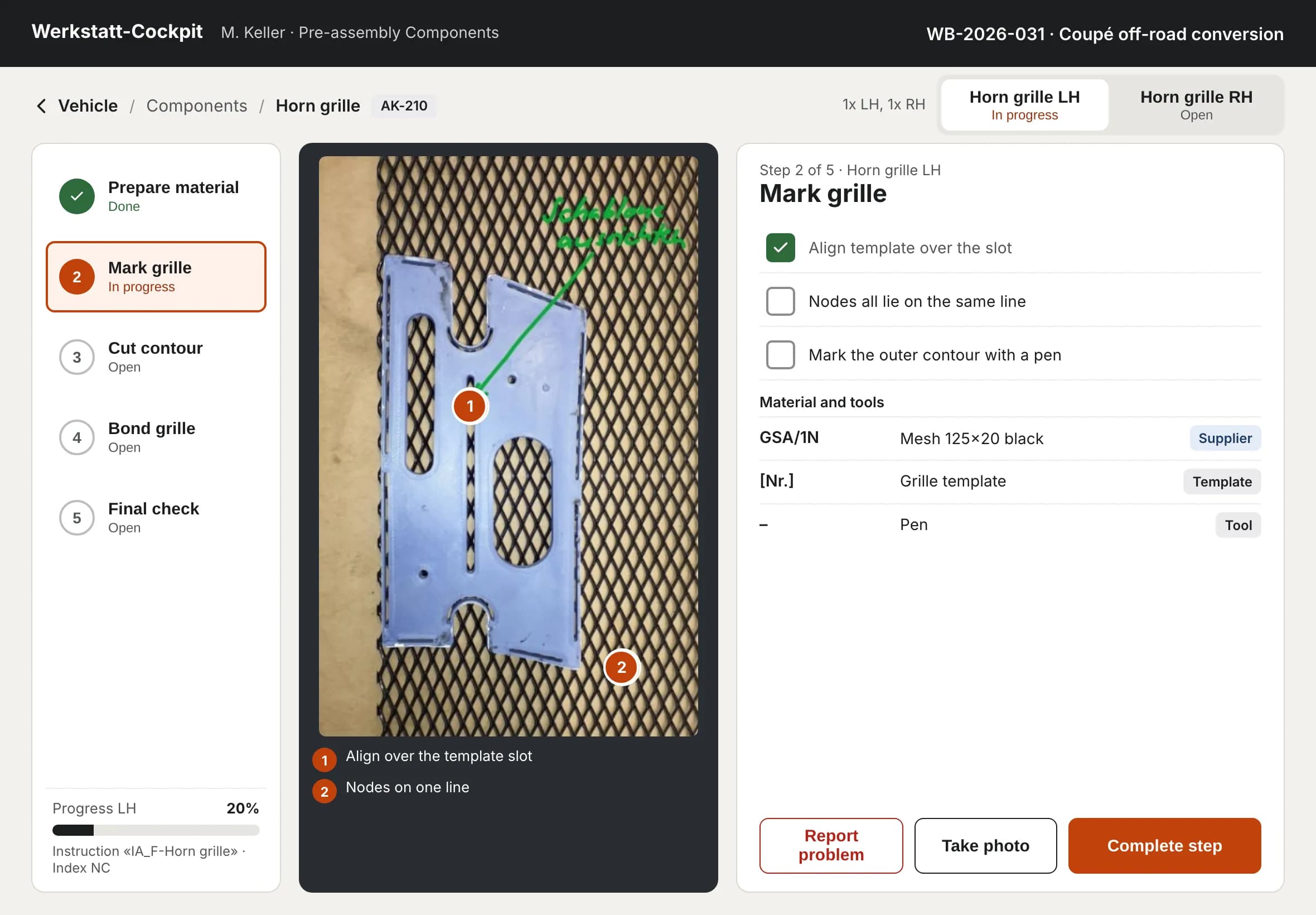
Work step by step
The work card guides you through every step: photo with markers, items to tick off, material and tools. Whatever is signed off goes into the vehicle record with name and time.
- Released revision, no old printouts
- Left and right with their own progress
- Take photos right inside the step
Step 4: Workshop · tablet
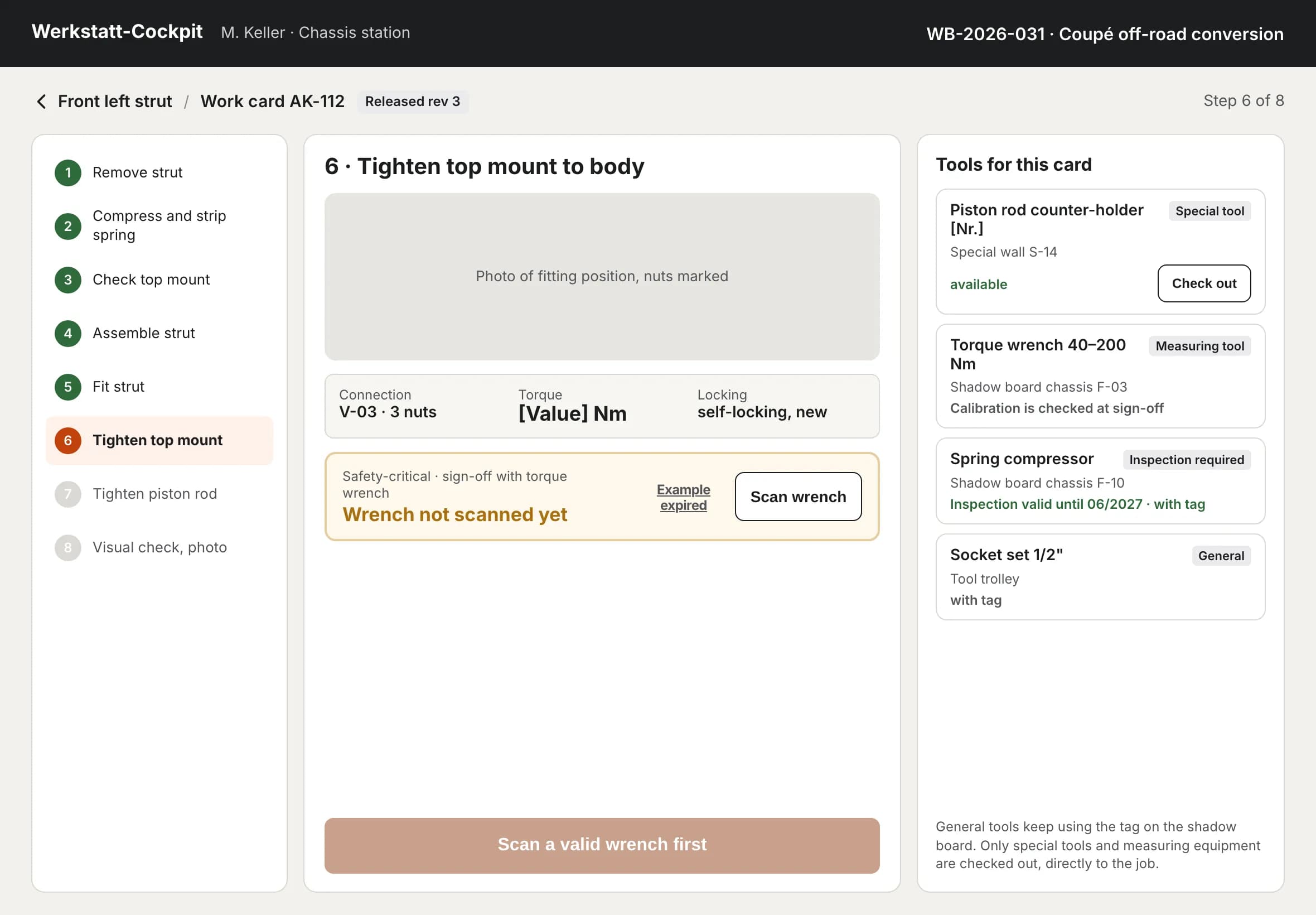
Tighten safely with the torque lock
For safety-critical joints the button stays locked until a calibrated torque wrench has been scanned. The button tells you what is missing.
- Torque belongs to the joint
- Calibration and approval are checked
- Check out special tools directly to the job
Step 5: Workshop · tablet
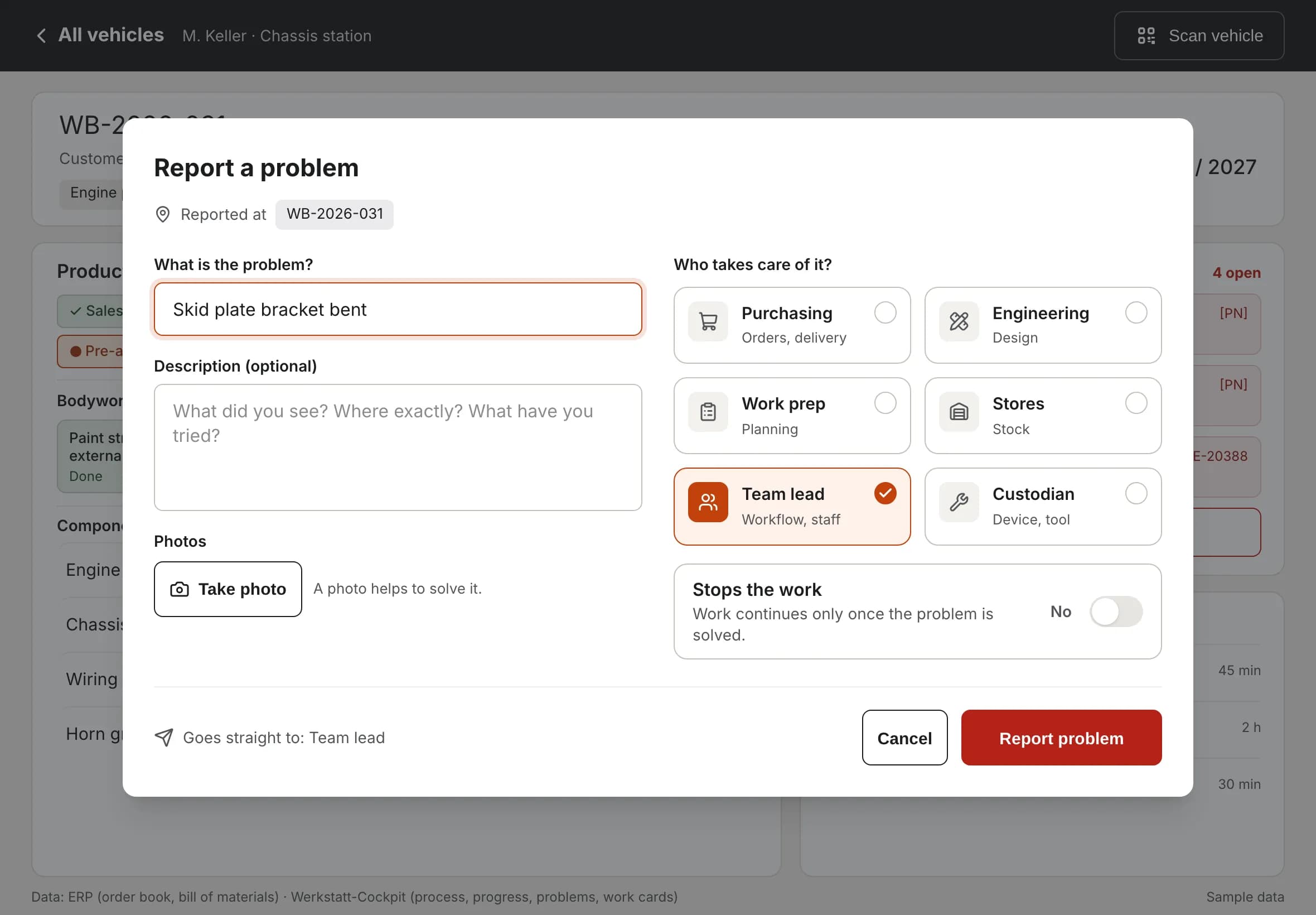
Report a problem instead of searching
Something doesn’t fit? Describe it briefly, add a photo, choose who takes care of it. Done. Even without network: the report is sent as soon as Wi-Fi is back.
- Purchasing, engineering, work prep, stores, team lead or device keeper
- “Stops work” flags what is urgent
- Saved offline, nothing gets lost
The office solves it, the workshop knows
What the workshop reports goes straight to the office. And the answer comes back to the tablet.
Step 6: Office · Windows or Mac
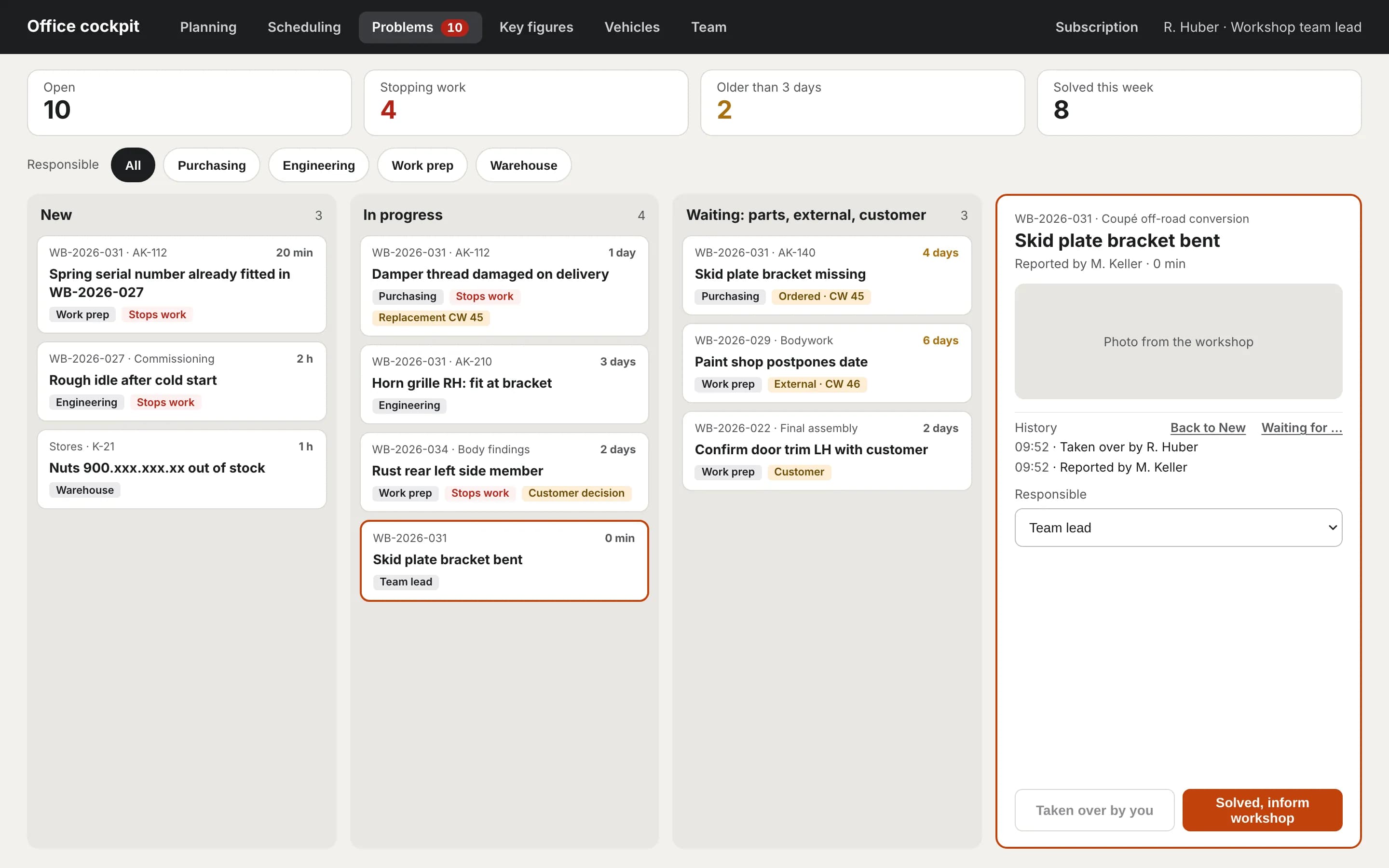
The office sees it at once and solves it
The report appears on the problem board without reloading. Take it over, order parts, sort out the date. “Solved, inform workshop” closes the case.
- Columns new, in progress, waiting, solved
- Filter by responsibility
- History with every step
Step 7: Workshop · tablet
The workshop knows
At the bottom right of the tablet, “New for you” shows the answer from the office. One tap opens the vehicle. No chasing, no notes.
- Message goes to the person who reported it
- One tap opens the vehicle
Plan, schedule, analyse
In the office, the same data becomes the plan, the weekly schedule and the key figures. Nobody types anything twice.
Step 8: Office · planning
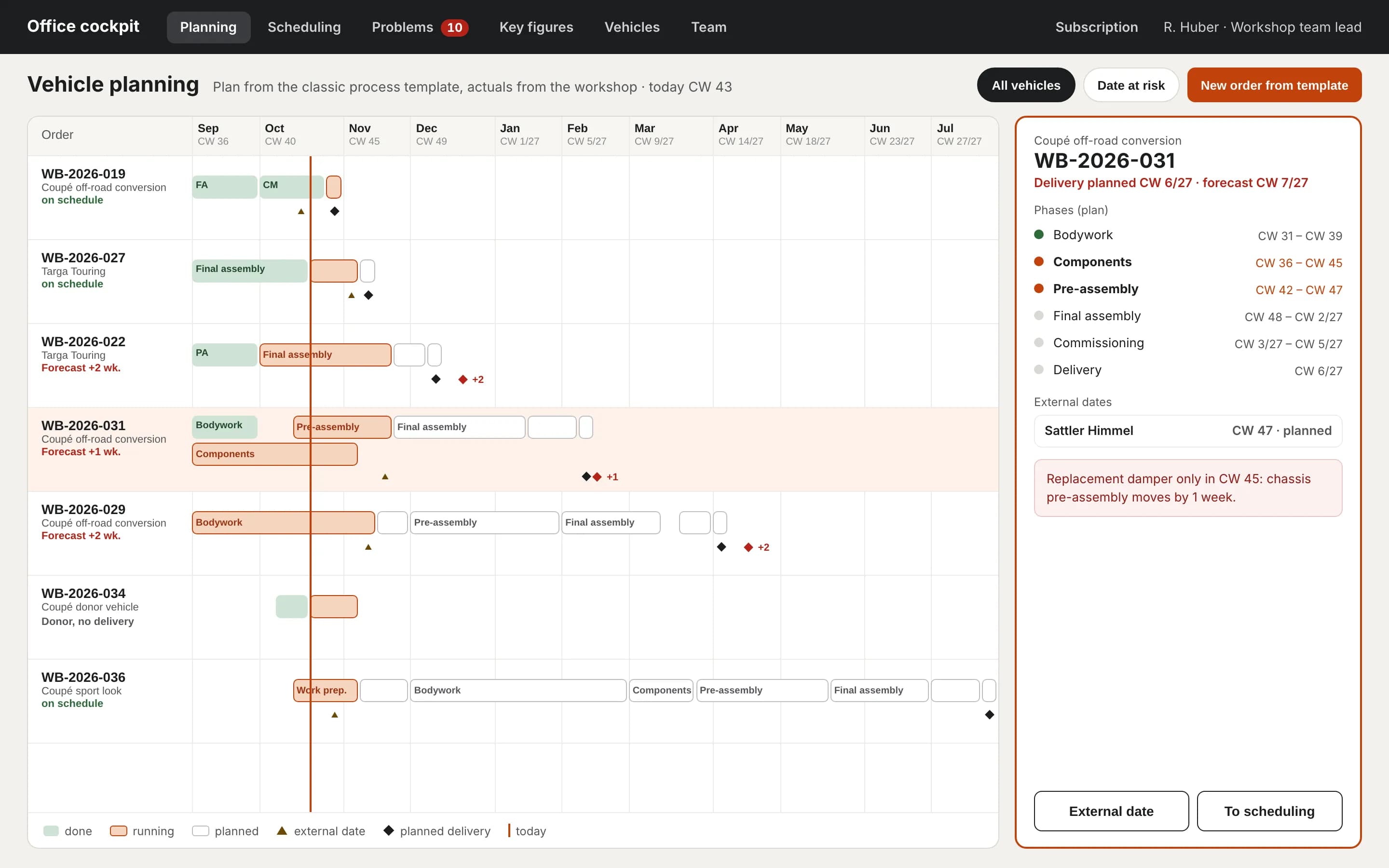
Planning with forecast
Each vehicle as a row, the phases as bars. The forecast uses the real progress from the workshop and explains why a date moves.
- Plan from the process template
- External dates such as paint shop or upholsterer
- “Date at risk” at a glance
Step 9: Office · scheduling
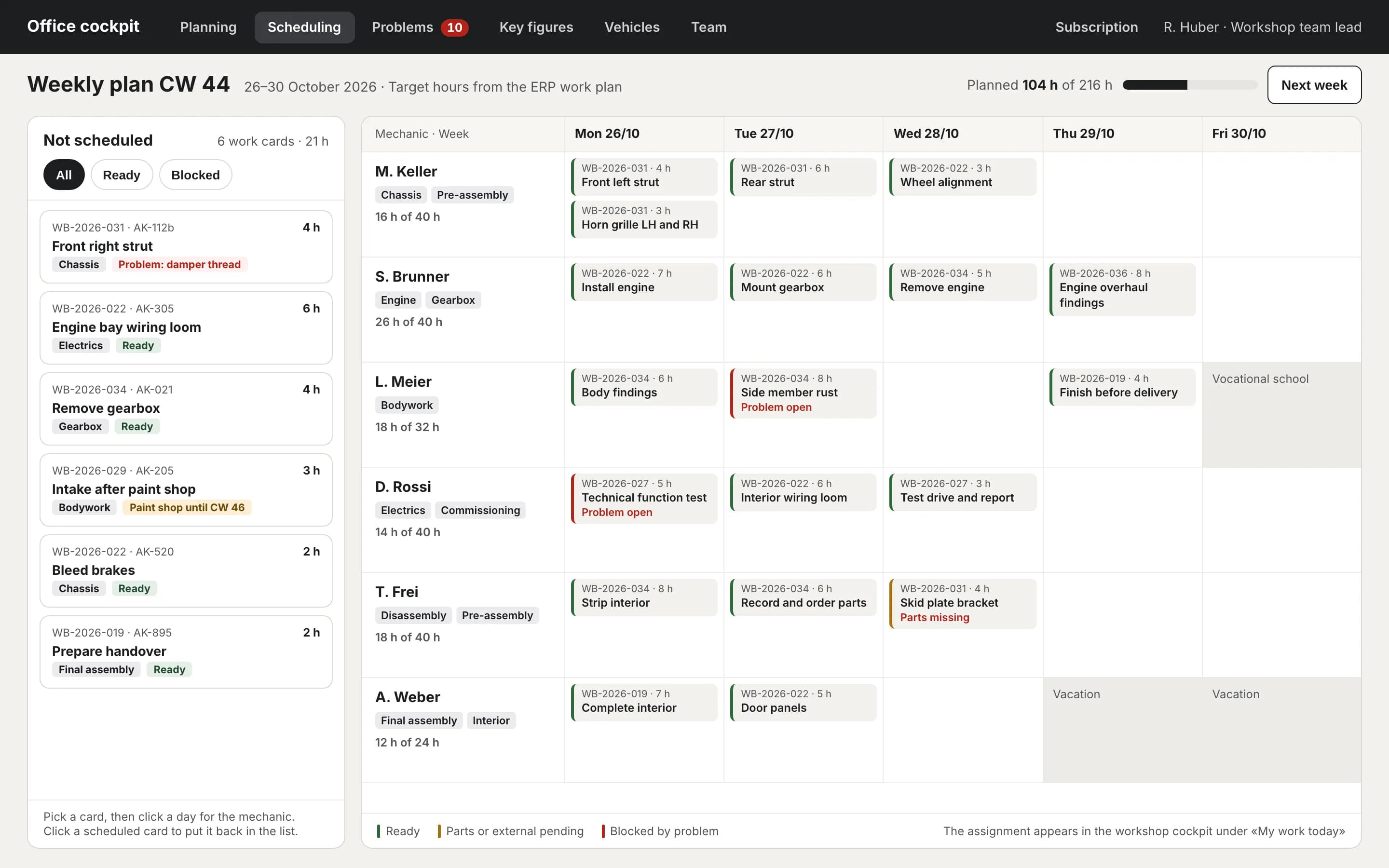
Scheduling: who does what?
Share work cards with target hours between people and days. The app warns about missing skills, absence or missing parts.
- Tap a card, pick a day, done
- Workload per person and week
- Shows up on the tablet under “My work today”
Step 10: Office · key figures
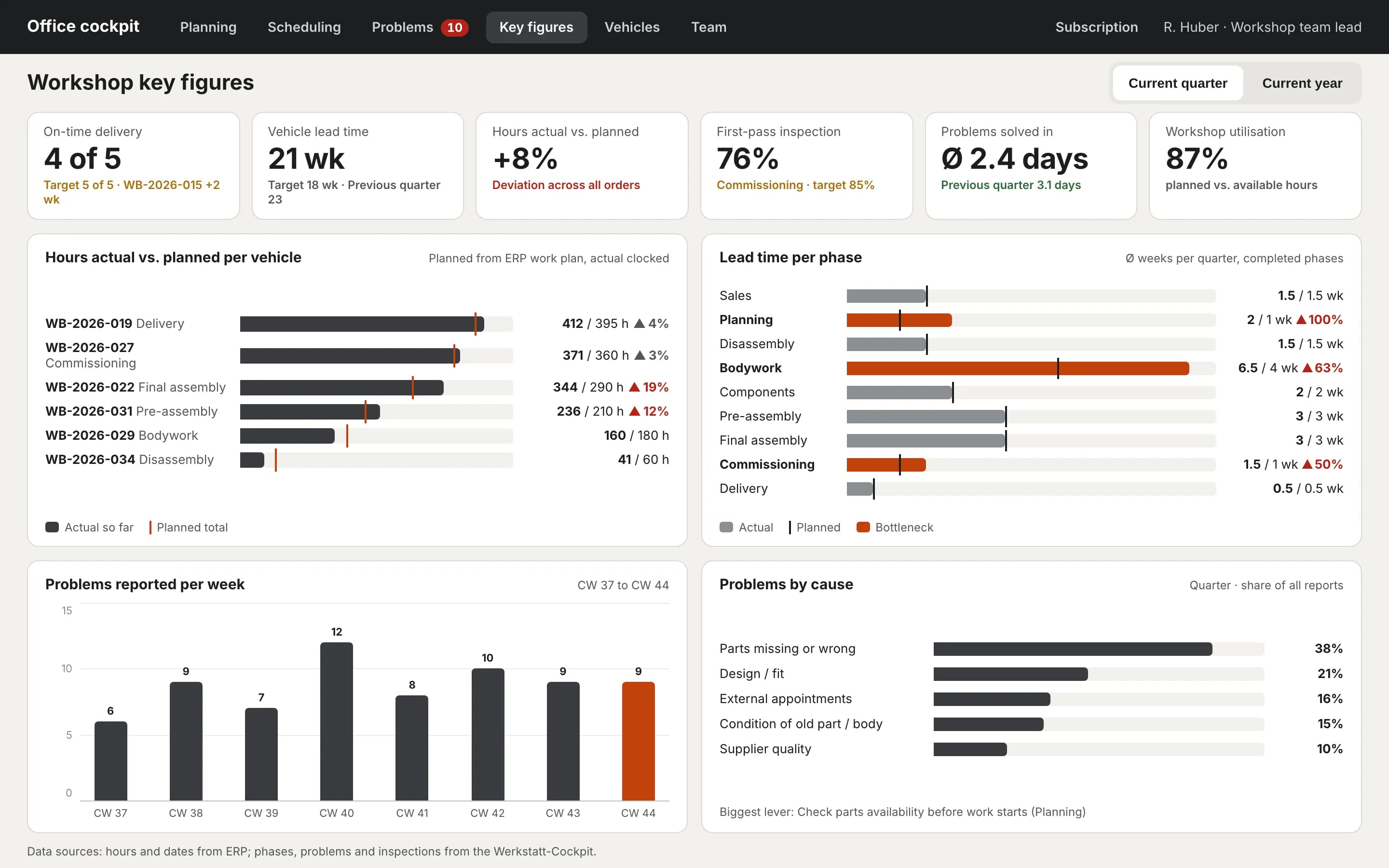
Key figures without Excel
On-time delivery, lead time, hours actual vs. planned, problems per week: the figures come from the work in the workshop.
- Current quarter or year
- Bottlenecks per phase
- Biggest lever at a glance
Even without computer experience
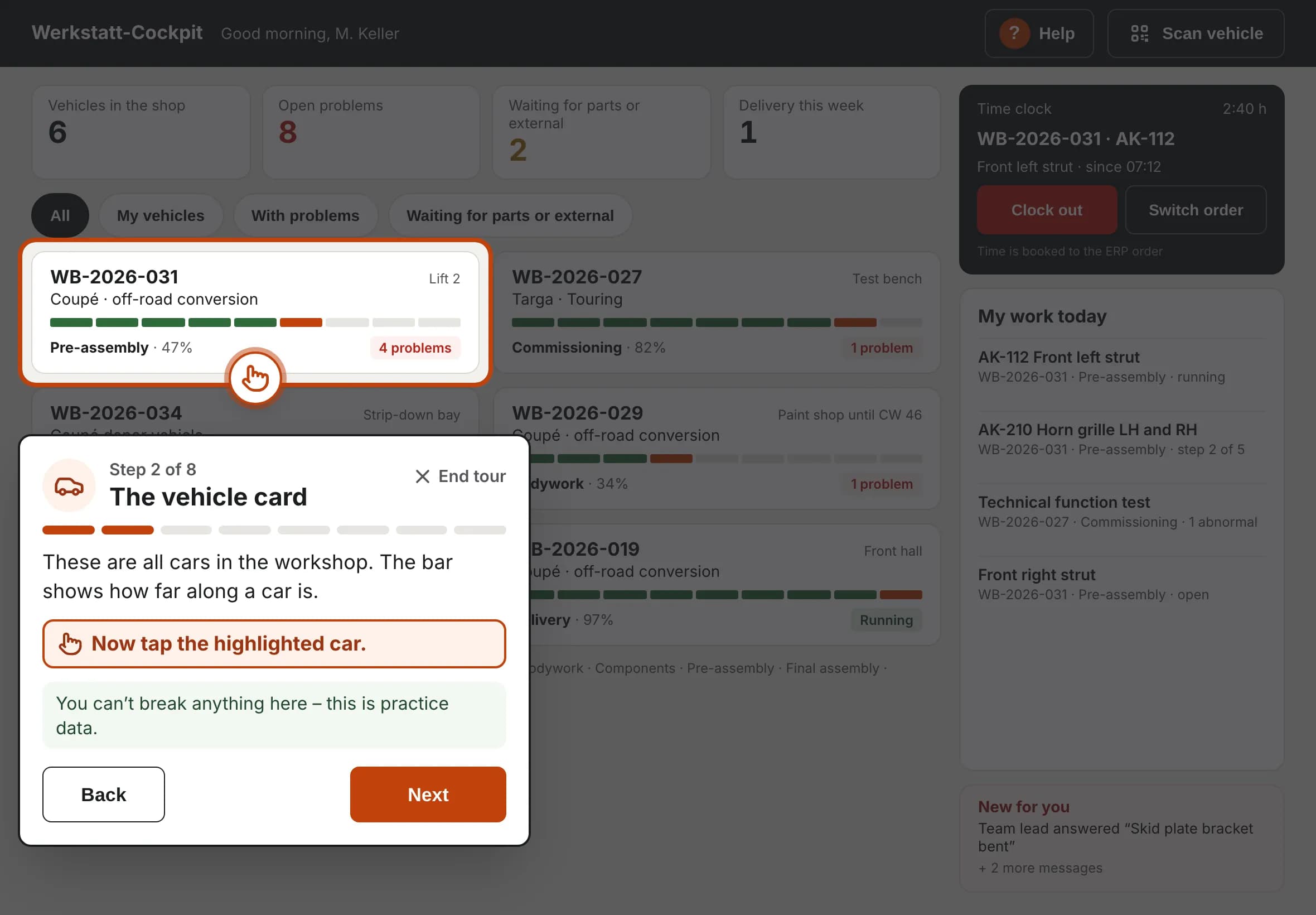
The app explains itself
After the first login a short tour starts. It shows every section in plain words and lets you join in: tap the car yourself and the tour moves on.
- Hands-on steps with big buttons and large text
- Restart any time via “? Help”
- Small glossary: what is a work card? Who looks after a device?
- In the demo workshop you can’t break anything
How MileEngine works
Try it yourself
Try MileEngine free for 30 days with your own vehicles, or let us show you the app in a demo.
Real screens from the app with sample data. Vehicle, manufacturer and ERP names have been neutralised.